
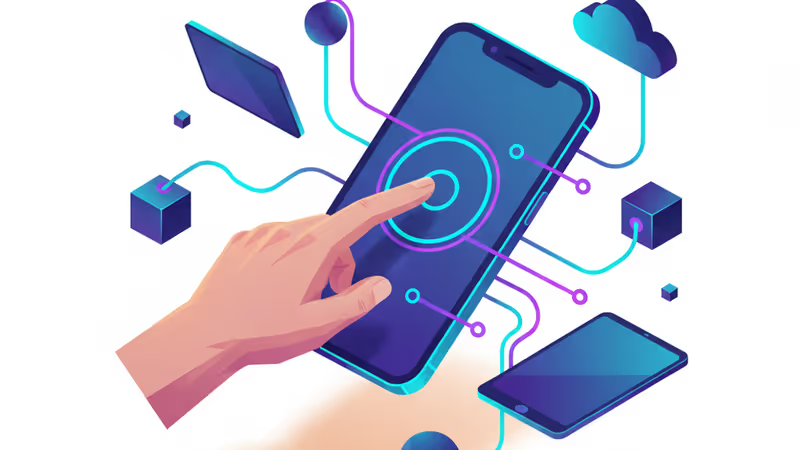
9 Essential Tweaks to Make Any iPhone 16 or Android a Senior-Friendly Phone
Is your parent or grandparent struggling with their iPhone or Android? These 9 essential tweaks—from font size and home screen shortcuts to Emergency SOS—can make any smartphone easy to use.
They have the latest smartphone, but can't make a simple call. Sound familiar? For parents, grandparents, or anyone struggling with modern tech, a brand-new iPhone or Android can feel more like a barrier than a tool. With a few simple tweaks, you can transform that confusing device into an accessible and safe communication hub. Pick the tips that are most relevant for your loved one.
1. Simplify the First Impression: Lock & Home Screens
While it's tempting to skip a lock screen, you shouldn't. The ideal setup is a fingerprint sensor like Touch ID or Face ID, as they require minimal effort once configured. If that's not an option, set up a simple, memorable PIN. Next, declutter the home screen. Remove or uninstall any apps they won't use regularly. A clean screen with only a few essential icons is far less intimidating.
2. One-Tap Connections: Shortcuts & Launchers
One of the most helpful changes is adding direct-dial shortcuts to the home screen. On an Android phone, you can add a 'Direct dial' widget for a specific contact. On an iPhone, the Shortcuts app lets you create a home screen icon that calls a chosen person with a single tap. This eliminates the need to navigate through contacts.

For Android users, you can go a step further by installing a simplified 'launcher'. Samsung phones have a built-in 'Easy Mode' that enlarges icons and text. Alternatively, apps like 'Simple Launcher' or 'Big Launcher' replace the standard interface with a much more straightforward, large-button layout.
3. Boost Visibility: Text Size and Alerts
Increasing the font size is a quick win for readability. Both iOS and Android have easy-to-find sliders in their 'Display' or 'Accessibility' settings. To ensure calls aren't missed, turn the ringtone and notification volume to maximum, choose a familiar sound, and enable vibration. On an iPhone, you can also activate the 'LED Flash for Alerts' feature for a powerful visual cue.
4. Set Up Safety Nets: Tracking and Emergency SOS
To prepare for a lost phone, make sure tracking is enabled—'Find My' on iPhone and Google's 'Find Hub' on Android. With permission, you can also have them share their location with you, which is invaluable for both finding a lost device and for peace of mind.
It's also critical to set up emergency information. On an iPhone, the 'Medical ID' in the Health app allows you to list blood type, medications, and emergency contacts. Android has a similar 'Safety & emergency' section. This info can be accessed from the lock screen by first responders. Also, enable the Emergency SOS feature, which can automatically call for help and notify contacts when the power button is pressed rapidly five times or held down with a volume button.
Authors
Related Articles
A complete guide to backing up your Android phone in 2026 — Google One, Samsung Cloud, local storage, and the 2FA codes most people forget until it's too late.
At GDC 2026, Google announced major updates to bring Google Play to Windows—new tabs, wishlists, premium titles, and game trials. But can it compete with Steam and Game Pass?
Complete breakdown of iPhone 17 series with 5 models from $599-$1,199. Analysis of Apple's new Air model strategy and what it means for smartphone market competition.
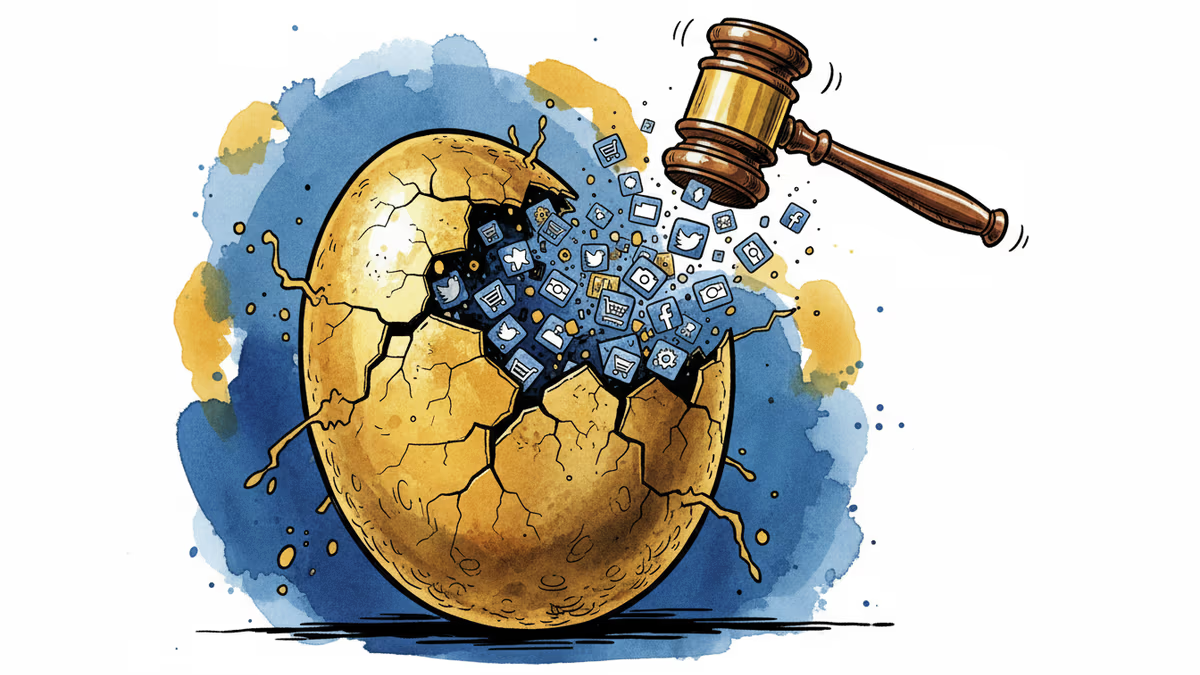
Google slashes app store fees to 20% and opens Android to third-party stores. Epic's legal victory triggers the biggest mobile ecosystem shake-up in 15 years.
A complete guide to backing up your Android phone in 2026 — Google One, Samsung Cloud, local storage, and the 2FA codes most people forget until it's too late.
At GDC 2026, Google announced major updates to bring Google Play to Windows—new tabs, wishlists, premium titles, and game trials. But can it compete with Steam and Game Pass?
Complete breakdown of iPhone 17 series with 5 models from $599-$1,199. Analysis of Apple's new Air model strategy and what it means for smartphone market competition.
Google slashes app store fees to 20% and opens Android to third-party stores. Epic's legal victory triggers the biggest mobile ecosystem shake-up in 15 years.
Thoughts
Share your thoughts on this article
Sign in to join the conversation