
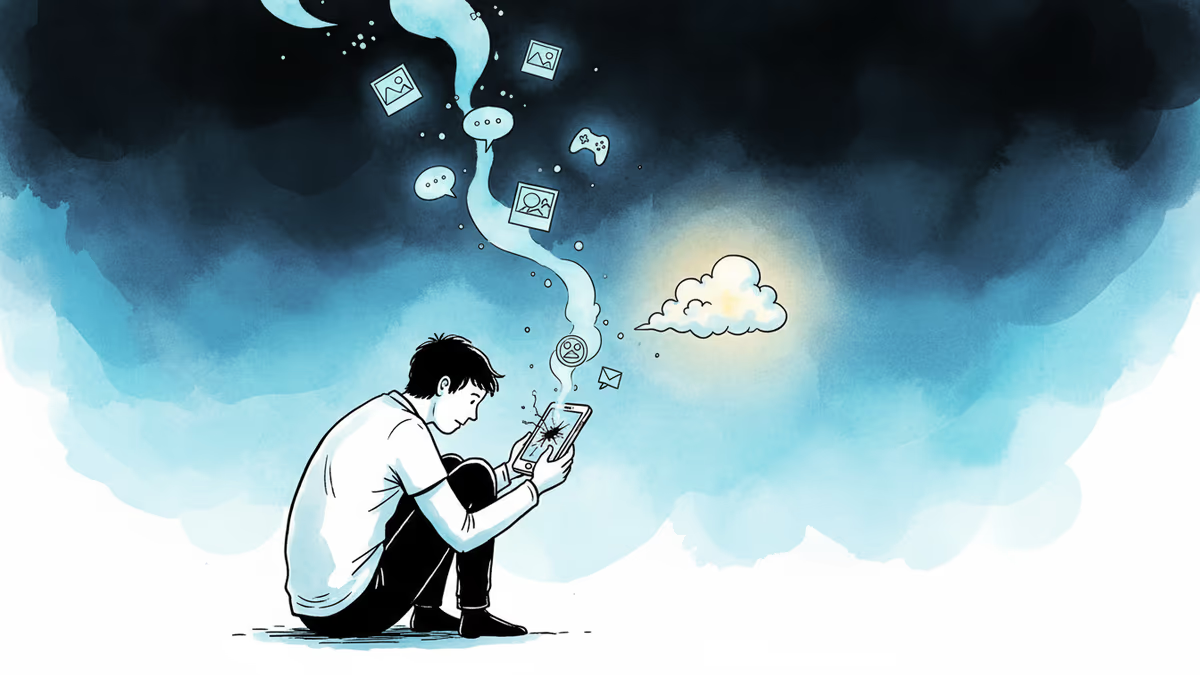
Your Memories Are One Drop Away From Gone
A complete guide to backing up your Android phone in 2026 — Google One, Samsung Cloud, local storage, and the 2FA codes most people forget until it's too late.
Somewhere on your phone right now is a video you could never recreate, a message you'd never want to lose, and a save file representing dozens of hours of your life. The average person takes backups seriously approximately once — right after they've lost everything.
Here's how to not be that person.
The Easiest Option: Let Google Handle It
If you're on Android, Google's backup system is already baked in. The path varies slightly by manufacturer, but you're looking for Settings → Backup, or on most phones Settings → Security & Privacy → Backup. On Samsung devices, it's Settings → Accounts and Backup.
Switch it on, check the boxes for what you want saved — photos, videos, app data — and tap Back up now. If this is your first backup, it can take several hours. Plug in overnight on Wi-Fi and let it run.
The catch: Google gives you 15GB free. For most people with a camera roll, that fills up fast. Google One plans start at $2/month for 100GB or $20/year, scaling up to 2TB for $10/month. You can share that storage with up to 5 family members, which makes the per-person cost surprisingly reasonable. Google's AI subscription tiers also bundle storage, so if you're already paying for Gemini Advanced, check what you're already getting.
Skipping the Cloud: PC, Mac, and Chromebook
Not everyone wants their personal files living on someone else's server. Fair enough. Plugging your phone into a Windows PC via USB and selecting File Transfer from the notification shade gives you direct access to your phone's storage through File Explorer. Photos live in DCIM > Camera.
On a Mac, you'll need to install Google's free Android File Transfer app first — then it's the same drag-and-drop process. Chromebook users get the smoothest experience: plug in, select File Transfer, and the Files app opens automatically.
Once you've pulled the files onto your computer, move them to an external hard drive or USB stick. That's a proper local backup — no subscription, no third-party access.

Samsung Users: You Have More Options (With a Catch)
Samsung owners can back up through Samsung Cloud or use Smart Switch to mirror their phone to a PC or Mac. The standout feature is Temporary Cloud Backup — available on Galaxy S and Z series running One UI 6 or later. It stores your full backup in the cloud free for up to 30 days, with no total storage cap (individual files max out at 100GB). It's designed for the phone-trade-in window: back up, sell your old device, restore on the new one.
The critical limitation: Samsung backups can only be restored to Samsung phones. If there's any chance you'll switch to a Pixel or another Android brand, run a Google backup in parallel. Don't assume one is enough.
The Apps You're Forgetting to Back Up
Cloud and local backups handle your photos and system data. But your messaging apps often store data separately.
WhatsApp has its own backup system under Settings → Chats → Chat Backup. Set a frequency, and — importantly — toggle on end-to-end encrypted backup. Without it, your chat history sits on Google Drive in a form WhatsApp (and potentially others) can read.
Signal takes the opposite approach: no cloud backup at all. You create a local backup file and move it off the device yourself. It's more friction by design — that's the privacy trade-off Signal has always made explicit.
The Thing Almost Nobody Backs Up: 2FA Codes and Passkeys
Lose your phone without planning for this, and you may find yourself locked out of your own accounts. If your Google account uses two-factor authentication and your phone is the second factor — you see the problem.
Google lets you generate backup codes in your account security settings. Print them, store them somewhere that isn't your phone. It takes five minutes and has saved people from days of account recovery hell.
Google Authenticator now supports encrypted cloud sync — check by tapping your profile icon in the app. If you see a cloud with a checkmark, you're covered.
Passkeys are trickier. They're often stored locally on the device and automatically backed up to your Google account — but consider a second layer. A cross-platform password manager like Bitwarden (free tier available) or a physical security key like YubiKey ($58) gives you a fallback that doesn't depend on any single device or platform.
Authors
Related Articles
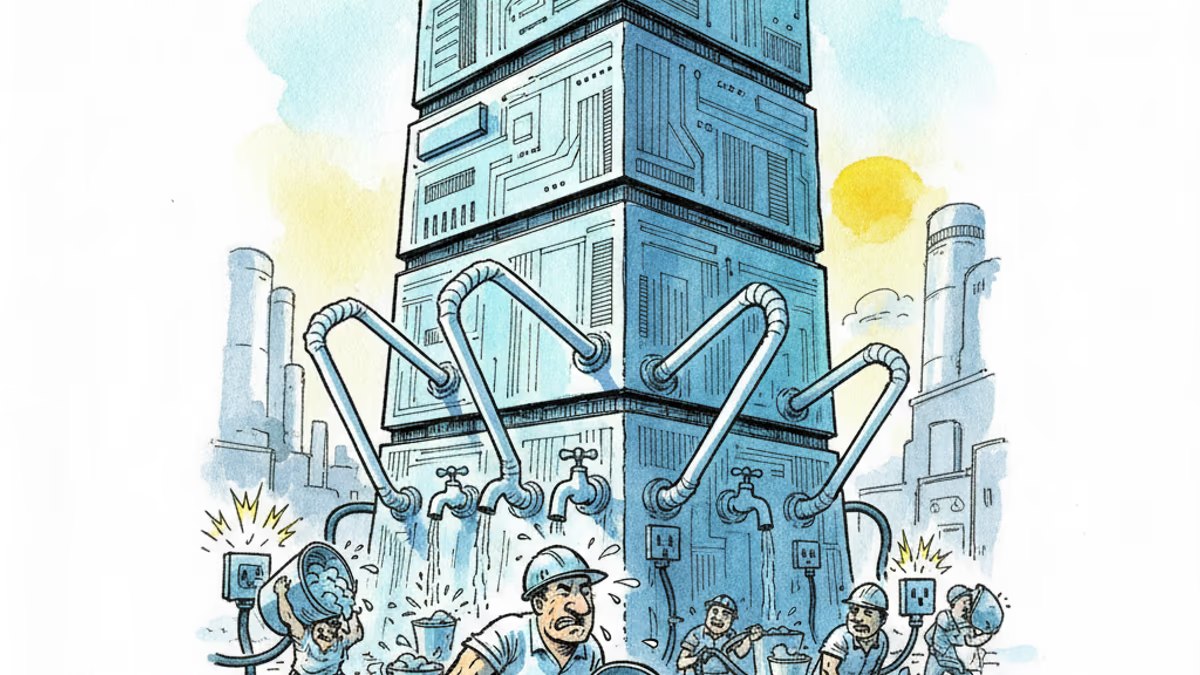
Samsung and SK unveiled a chip and AI investment package worth thousands of trillions of won on June 29. The headline number swings wildly by outlet, but the real contest isn't capital — it's water and power.
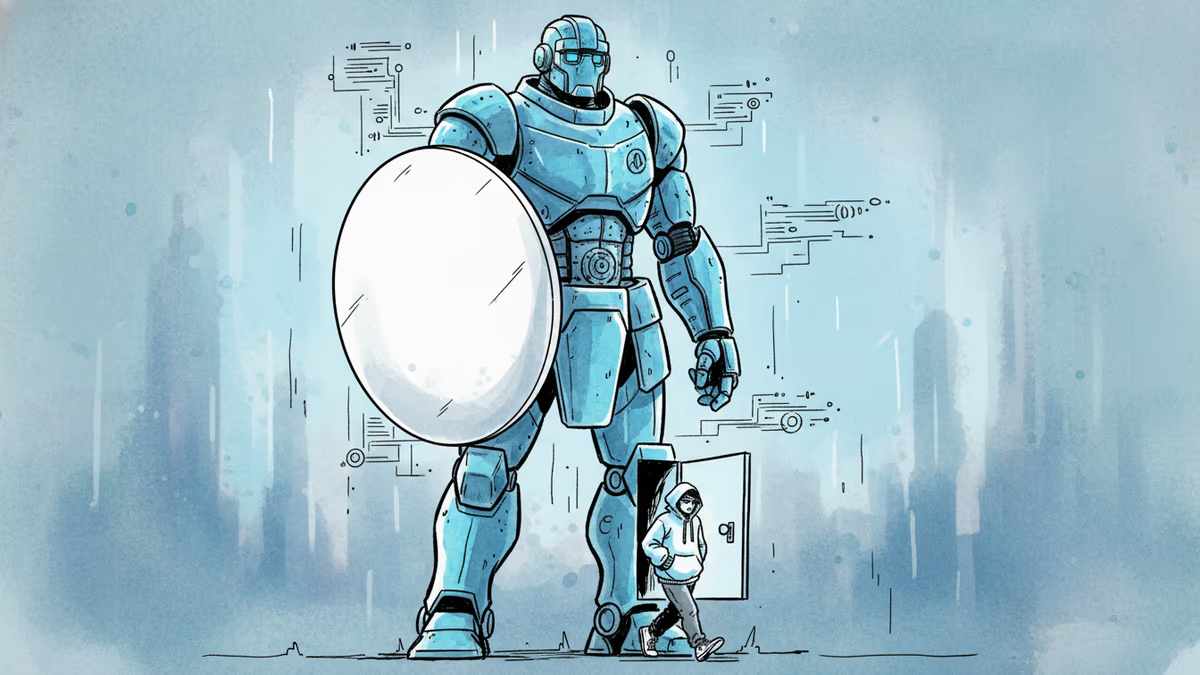
Anthropic's tightly restricted Mythos AI—designed to find security flaws—was accessed by Discord sleuths without a single line of exploit code. Meanwhile, North Korean hackers used AI to steal $12M in three months. The security paradox of 2026.
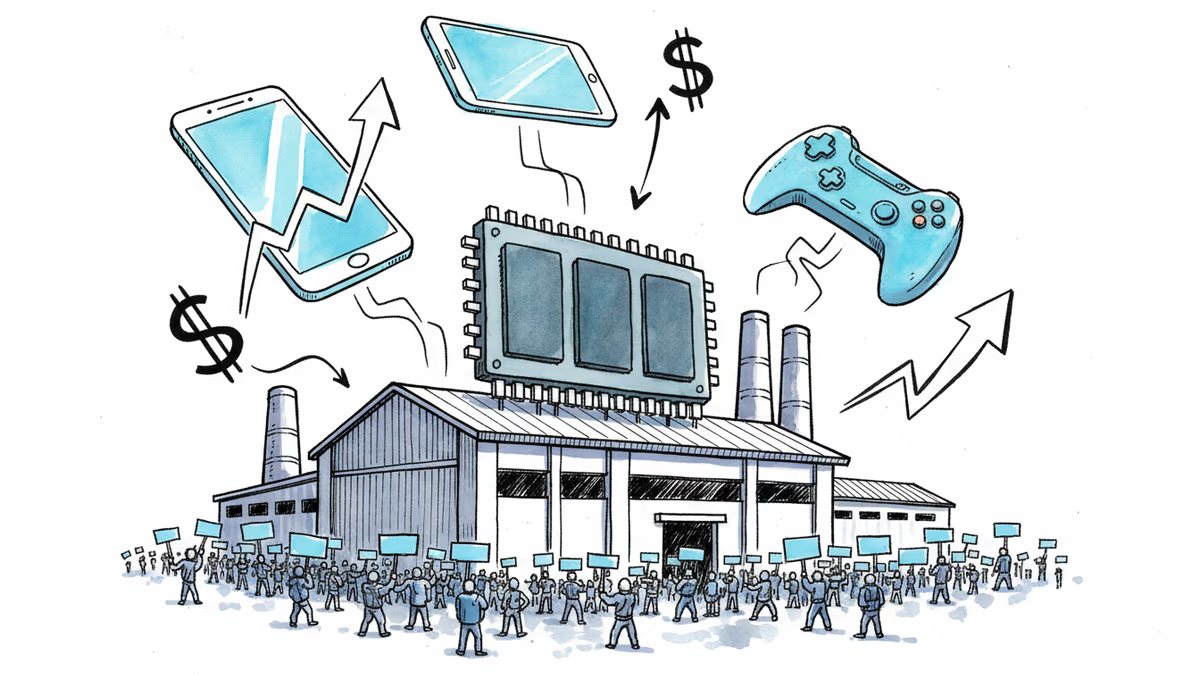
40,000 Samsung union workers rallied at its Pyeongtaek chip plant, threatening an 18-day strike over wages. With AI-driven RAM shortages already lifting consumer prices, the timing couldn't be worse.
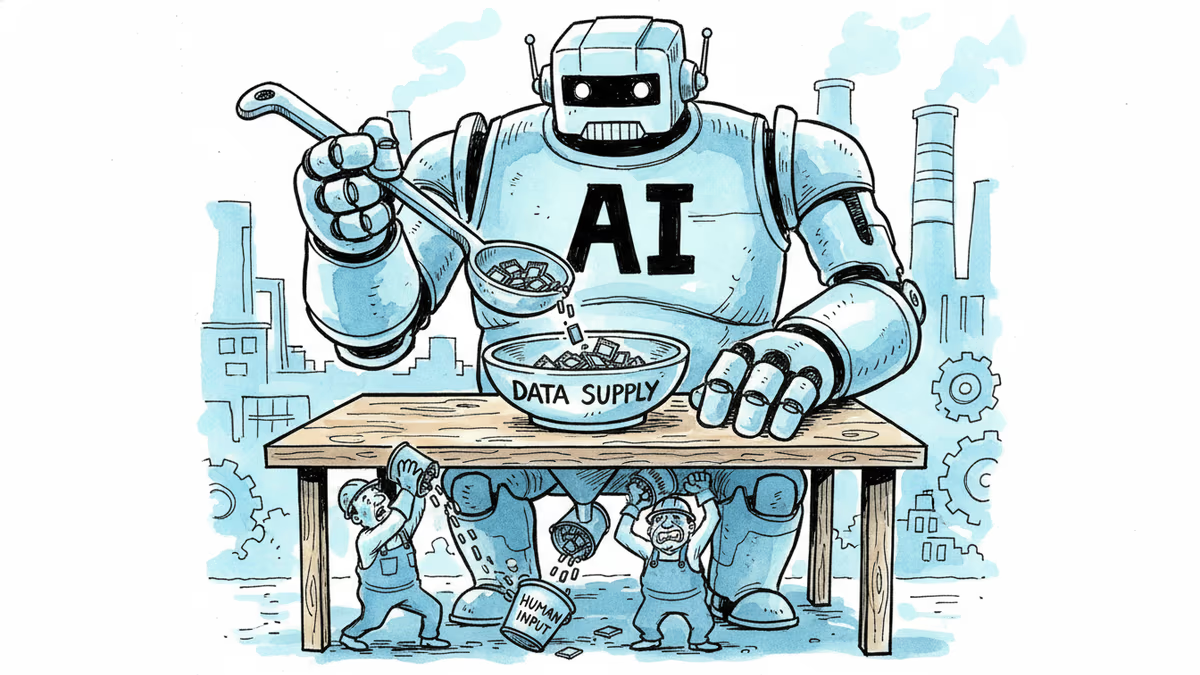
Memory makers can't build fabs fast enough. By end of 2027, supply will cover just 60% of demand. Here's why the shortage could last until 2030—and what it means for AI, your devices, and the chip industry.
Samsung and SK unveiled a chip and AI investment package worth thousands of trillions of won on June 29. The headline number swings wildly by outlet, but the real contest isn't capital — it's water and power.
Anthropic's tightly restricted Mythos AI—designed to find security flaws—was accessed by Discord sleuths without a single line of exploit code. Meanwhile, North Korean hackers used AI to steal $12M in three months. The security paradox of 2026.
40,000 Samsung union workers rallied at its Pyeongtaek chip plant, threatening an 18-day strike over wages. With AI-driven RAM shortages already lifting consumer prices, the timing couldn't be worse.
Memory makers can't build fabs fast enough. By end of 2027, supply will cover just 60% of demand. Here's why the shortage could last until 2030—and what it means for AI, your devices, and the chip industry.
Thoughts
Share your thoughts on this article
Sign in to join the conversation